Templates global overview
Computop is offering 3 types of hosted templates:
Hosted Credit Card form
Hosted Payment Page with all relevant payment methods on one page
Hosted Direct Debit form
Computop Hosted Credit Card form
Endpoint
https://www.computop-paygate.com/payssl.aspx
Visualization

Features & Functionalities
Features & Functionalities | Description |
Supported brands | Currently supported brands are:
|
Automated brand recognition | Based on leading digits (BIN) the templates recognize the correct brand and highlights the logo of the brand |
Automated separation of card number digits | Based on the recognized brand, correct separation pattern is applied (e.g. Visa: 4-4-4-4; Amex: 4-6-5) |
Automated card number check | Templates perform Luhn check to validate the card number. Incorrect card numbers result in highlighting the field in red color, pointing to an error. |
Automated card expiry check | Expiry in past will result in error message. |
Supported languages | Currently supported are:
Adding new languages is very fast and can be done on the fly. We just need to have the translated texts. |
Custom fields | Merchant can use URL query parameters to send additional fields used for basic customization. All fields are described below. |
CVC cloaking | CVC value is not being displayed in raw form, but is rather cloaked, as additional layer of security. |
Device responsiveness | Forms are device responsive. |
Numeric keypad when working on mobile device | In order to have better user experience, numeric keypad is being used when editing numeric fields. |
Computop Hosted Payment Page (HPP)
Endpoint
https://www.computop-paygate.com/paymentpage.aspx
HPP with all payment methods as logos
This page shows all the logos of the available payment methods, so the merchant is not highlighting any payment method.
The user will be automatically redirected to the specific URL of the chosen payment method (please refer to each payment method guide).
Visualization

HPP available payment methods
Payment method |
Cards |
Direct Debit |
PayPal |
iDEAL |
Sofort |
giropay |
paydirekt |
Alipay |
Bancontact |
Bank Transfer |
Bitpay |
eNETS |
Finland Online Bank Transfer |
Multibanco |
My Bank |
MyClear FPX |
Przelewy 24 |
PostFinance |
paysafecard |
QIWI |
RHB Bank |
TrustPay |
Apple Pay |
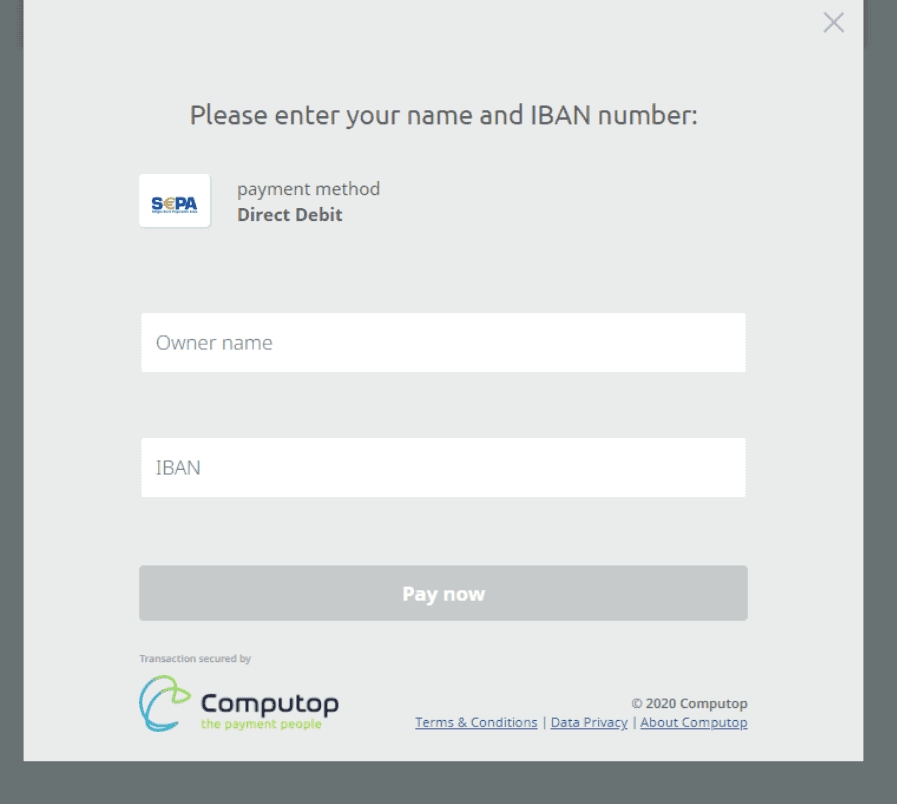
Computop Hosted Direct Debit form
Endpoint
https://www.computop-paygate.com/paysdd.aspx
Visualization
Templates customization overview
Option 1 Computop default templates | Option 2 Merchant’s customization using variables | |
Payment means displays’ options | Standard design: Templates are designed in Computop corporate style. Merchant has the possibility to add logo and multiple custom fields, described below. | Higher flexibility: It is possible to customize background and button colors, fonts size and style and more. Detailed guide describing all the options is further below. |
Customization | Ø Merchant's Logo Ø Customizable fields, also called CustomFields (order’s details, customer’s details….) | Described in separate chapter below: Merchant’s customization using variables |
Computop default templates customization
How to customize the payment page?
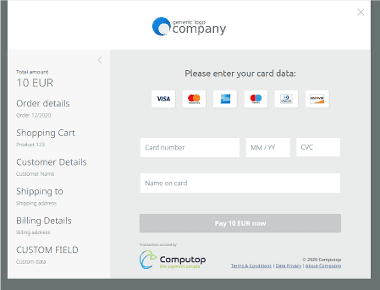
When the merchant decides to use the standard Computop payment page, there is the possibility to insert his logo and customize up to 9 specific fields (also called CustomFields) of the payment form.
Key | Format | CND | Description |
CustomField1 | ans..50 | O | Amount and currency of the transaction |
CustomField2 | ans..50 | O | Order’s number |
CustomField3 | ans..50 | O | Merchant’s logo, URL of the logo. Format: .png. Logo can be in any size, templates will adjust the preferred size. |
CustomField4 | ans..50 | O | Order’s description |
CustomField5 | ans..50 | O | Buyer’s information |
CustomField6 | ans..50 | O | Shipping information |
CustomField7 | ans..50 | O | Delivery information |
CustomField8 | ans..50 | O | Name of a new field added by the merchant |
CustomField9 | ans..50 | O | Value of a new field added by the merchant |
URLBack | ans..100 | O | Page to return if customer decides to cancel the payment form using "x" button in upper right corner |
Payment request using custom fields:
.......aspx?MerchantID=Test&Len=67&Data=0A67FE96a65d384350F50FF1&CustomField1=...&CustomField2=....
Visualization of customization using all Custom fields
Merchant’s customization using variables
Template name change
Before changing and customizing the appearance, it is necessary to change the template name.
The name change needs to happen in:
.xml file name
.xsl file name
inside xsl file
images folder name
inside main.js file
The rule is, that current name (e.g. Cards_template_v1) needs to be changed to new name (e.g. merchant_A), without modifying anything else.
Example of new structure using template name: merchant_A
imagesmerchant_A_PaySSL
merchant_A_PaySSL.xml
merchant_A_PaySSL.xsl
Additionally, as described above, change of template name needs to happen inside files merchant_A_PaySSL.xsl and main.js.
The payment templates provides several possibilities to customize the appearance.
Configuration happens via changes in a .css-file called “overrides.css” which can be found in the “css” folder of the template. It is required that you have a basic understanding / knowledge of CSS.

Default template without any customization
Possible Changes
The file “overrides.css” is included in the template by default and can be used to add custom CSS-changes. There are 2 ways of adding changes:
Change the predefined options
Add your custom CSS code
Since the default template has been carefully tailored and takes a lot of visitor-specific details that you might not be aware of into account (e.g. browser, OS, country, language, screen-size/-resolution, device-type…), adding custom CSS code is not recommended, yet still possible if you know what you are doing.
Predefined Options
Following is a list of customization options with illustrations & explanations.
Options can be set by uncommenting the mentioned CSS-Variable name in the “overrides.css” file and changing its default value to the desired one.
Fonts & Text
The following variables allow changing the appearance of text in the payment template:

Variable name | Default value | Purpose |
--font-size-base | 12px | All font- & element-sizes are derived from this value. It defines the size of regular text and scales all other elements (headlines, side-bars, inputs) proportionally. |
--font-family-headline | 'Ubuntu', monospace | The font family used for headlines (A). |
--font-family-copy | 'NotoSans', sans-serif | The font family used for all other texts. |
--text-color-base | #606060 | Default color of text. |
--text-color-link | #4b61a5 | Default color of links (B). |
Background Colors
Customize the following background colors of the layout:
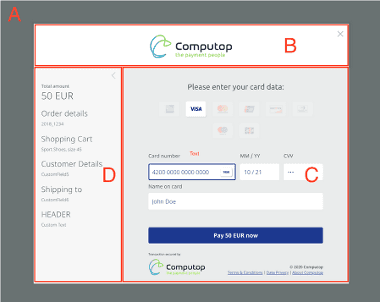
CSS variable name | Default value | Purpose |
--background-page | #697272 | Sets the background-color of area A |
--background-header | #ffffff | Sets the background-color of area B |
--background-content | #eaecec | Sets the background-color of area C |
--background-cart | #f7f7f7 | Sets the background-color of area D |
Payment forms
The following customization options can be applied to payment forms:
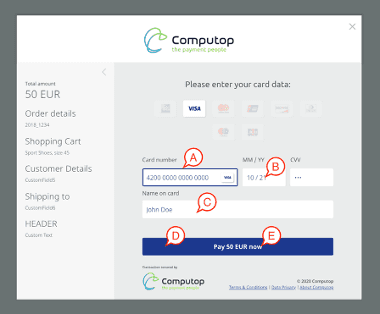
Variable name | Default value | Purpose |
--input-highlight | var(--ui-color) | The border-color of a currently active text-input (A). |
--input-text | var(--ui-color) | The text-color of text-inputs (B). |
--input-background | #ffffff | The background-color of text-inputs (C). |
--submit-background | var(--ui-color) | The background-color of submit (pay) buttons (D). |
--submit-text | #ffffff | The text color of submit (pay) buttons (E). |
Other Changes

Logo Exchange (A)
The image-file used can be found within the images-folder of the template and is called “logo_template_360x100.png”.
Keep in mind to replace it only with a file that has the exact same dimensions (360 pixel width, 100 Pixel height).
Footer Links (B) & Copyright (C)
The footer-links & copyright are part of the footer-section in the “translations.json“ file which can be found inside of the “data” folder of the template. Adjust as needed.
