About Google Pay
What is Google Pay
Logo |
|
Info | Google Pay is the fast, simple way to pay on sites, in apps and in stores using the cards saved to your Google Account. It protects your payment info with multiple layers of security and makes it easy to send money, store tickets or cash in on rewards – all from one convenient place. |
Type |

Notice: Regarding the liability shift in case of the card processing, please contact your Acquirer directly. Because Computop is not a direct contract partner, your Acquirer should specify the liability shift rules for each card brand.
PayPal payment method is only available in GooglePay Wallet via POS payment (NFC). In the context of an eCommerce GooglePay payment this variant is automatically inactive.
How it works
When a user taps the Google Pay payment button, they see a payment sheet. It displays the payment methods they've saved to their Google Account and optional fields such as a shipping address. Users can then select a payment method quickly and provide a shipping address if required, or they can add new information.
Notice: For further information about the button solution for Google Pay, please see https://support.computop.com/hc/en-gb/articles/4559076653970-Apple-Pay-und-Google-Pay-button-solution-PaySSL-aspx?source=search.
In-app payment
The Google Pay API enables fast, simple checkout within your app, giving you convenient access to hundreds of millions of cards saved to Google Accounts worldwide.
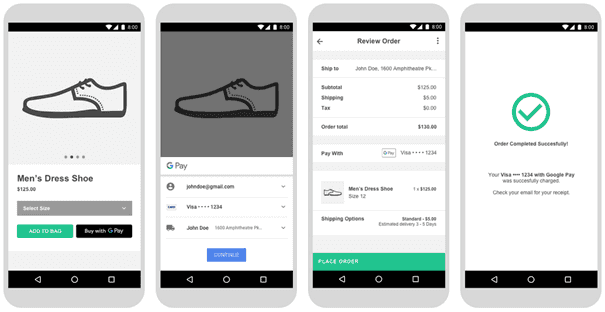
These above screens represent a recommended Google Pay buy flow for a shopping cart experience.
These guidelines will help you implement Google Pay within your apps: https://developers.google.com/pay/api/android/guides/brand-guidelines.
Web payment
The Google Pay API enables fast, simple checkout on your website. This provides convenient access to hundreds of millions of cards that are saved to Google Accounts worldwide.
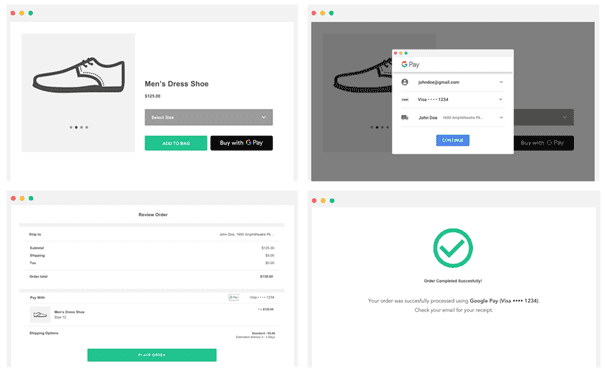
The above screens represent a recommended Google Pay buy flow for a shopping cart experience.
These guidelines will help you reference the Google Pay brand within your websites: https://developers.google.com/pay/api/web/guides/brand-guidelines.
Step by Step Set-Up Guide
Once you have decided to support Google Pay, there is a set of steps that need to be done. This guide is applicable for both, in-app and also web payments.
- Verify if your Acquirer supports Google Pay, for the card networks supported and support for Android device tokens.
This information will be provided by Computop support team: Computop Helpdesk.
- If you already do not have one, request creation of ComputopMerchant ID, unique identifier that represents a merchant in Computop Paygate platform. You need to use Computop Merchant ID also in Google Pay API.
Please contact Computop support team: Computop Helpdesk.
- Integrate Google Pay API: https://developers.google.com/pay/api/.
Apps: https://developers.google.com/pay/api/android/overview
Web: https://developers.google.com/pay/api/web/overview
a. For payment tokenization method, choose “GATEWAY”, with following values:
1const tokenizationSpecification = {2 type: “PAYMENT_GATEWAY”,3 parameters: {4 'gateway': 'computop',5 'gatewayMerchantId': 'yourComputopMerchantID'6 }b. For supported payment card networks, choose the ones your acquirer is supporting:
1const allowedCardNetworks = ['AMEX', 'DISCOVER', 'JCB', 'MASTERCARD', 'VISA'];c. The Google Pay API may return cards on file on Google.com (PAN_ONLY) and/or a device token on an Android device authenticated with a 3-D Secure cryptogram (CRYPTOGRAM_3DS).
Please make sure that you define CRYPTOGRAM_3DS only if your acquirer is supporting this functionality. Please contact Computop Helpdesk to verify this point if needed.
Description GooglePay authentication methods:
PAN_ONLY – authentication method via Non-Android devices.
Please note that it is required to follow the 3DS2 Server-to-Server process if you are located inside the EEA.
CRYPTOGRAM_3DS – authentication method via Android device.
These payments are already Strong Customer Authenticated in Google Pay wallet and therefore compliant with PSD2 SCA regulation.
1const allowedCardAuthMethods = ['PAN_ONLY', 'CRYPTOGRAM_3DS'];If you are operating in EEA region, please define CRYPTOGRAM_3DS only, as these payments are already Strong Customer Authenticated in Google Pay wallet and therefore compliant with PSD2 SCA regulation.
Note: If you receive Soft Decline in Response, you need to restart the payment with 3-D Secure authentication.
d. In response from Google Pay API, you should receive Token similar to this:
1{2 "signature": "MEQCIC4z/QHSrzekRkkuk3vGYxBTBdNgEQl5XFHx0Wk5fFLIUAiB3+q227havAJdagfGZaMXbefhatdJE7Df2qrIoKDv1Og==",3 "protocolVersion": "ECv1",4 "signedMessage": "{"encryptedMessage":"bOYRmExGeCsBrFqESt7kd9O1FN+vQZf2KG0UNYC8jNA+VVf9nQeK7lDvU8k37cH+LOziJQkHNL2OxDHIk6GoRV1BrXprwBnAJR0O2VnCUH8lsqq0ELwemeqW364Ir8cU/hDFzWNp+38H25JVDAMExZBKodMMTzUXXgyO+s5jOyAl8jUhnAw3fTRPkefuYsE8NFK5tvcs4L29h87Zo7ot0/8XrUhXt9b/Fld1LEthkuPSN+K1eEFP7bseB6jjRdHnwYAdqiE3iOmh71pcDmNIyrlWRj74UJaszeerZW7DoZNx11oN7fouq/8fe1vklsr/e+y/RSG2nQMWg5yR/fMTfqCyabTDhJMvMM1Zhe91+dQ0/xi/zKRgsIhiongJUjYtoSNIjUHnMLRuVTKdjX50CCI1QOiBtr9h0bOLePhxw9cLYeU1KwCfYJyt28DBKCvaWFSbCl+dzNcZ9B83kv","ephemeralPublicKey":"BFUju73/IT/KqnB/nc0W3BaL3BXFybrbYaPiMCKXIcg78PbslwV7MRUq3SpWEDEJT6pakLCvf34412HbDGCpsa4\u003d","tag":"xIuCUWB2U6yWEfidsJpQaa+leU/kqS522JLOnrnk42g\u003d"}"5}You need to Base64 encode the whole token string and include it in Paygate parameter TokenExt.
Process flow chart
Google Pay process flow
Paygate interface
Definitions
Data formats
Format | Description |
a | alphabetical |
as | alphabetical with special characters |
n | numeric |
an | alphanumeric |
ans | alphanumeric with special characters |
ns | numeric with special characters |
bool | boolean expression (true or false) |
3 | fixed length with 3 digits/characters |
..3 | variable length with maximum 3 digits/characters |
enum | enumeration of allowed values |
dttm | ISODateTime (YYYY-MM-DDThh:mm:ss) |
Abbreviations
Abbreviation | Description | Comment |
CND | condition | |
M | mandatory | If a parameter is mandatory, then it must be present |
O | optional | If a parameter is optional, then it can be present, but it is not required |
C | conditional | If a parameter is conditional, then there is a conditional rule which specifies whether it is mandatory or optional |
Notice: Please note that the names of parameters can be returned in upper or lower case.
Calling the interface
Two transactions are created when making a credit card payment via Google Pay. In the Google Pay transaction the required credit card data are determined first and the actual credit card transaction is then carried out automatically. This takes place via a server-to-server connection and supports all usual credit card transaction options. The difference here, however, is that you don't transmit the credit card information, which you don't know. Instead, you transmit the Token generated by Google Pay, which contains the required credit card data in encrypted form.
In order to make a credit card payment with Google Pay, please use the following URL:
https://www.computop-paygate.com/googlepay.aspx
Notice: For security reasons, Computop Paygate rejects all payment requests with formatting errors. Therefore, please use the correct data type for each parameter.
The following table describes the encrypted payment request parameters:
In addition you can submit any parameters that are applicable or required for a credit card payment (without credit card data). More information about this you can find within Card processing.
| Key | REST | Format | CND | Description | ||||||||
|---|---|---|---|---|---|---|---|---|---|---|---|---|
ans..30 | M | MerchantID, assigned by Computop. Additionally this parameter has to be passed in plain language too. | ||||||||||
ans..64 | M | TransactionID provided by you which should be unique for each payment | ||||||||||
ans..30 | O | Merchant’s unique reference number | ||||||||||
n..10 | M | Amount in the smallest currency unit (e.g. EUR Cent). Please contact the Computop Helpdesk, if you want to capture amounts <100 (smallest currency unit). | ||||||||||
a3 | M | Currency, three digits DIN / ISO 4217, e.g. EUR, USD, GBP. Please find an overview here: A1 Currency table | ||||||||||
––– | an64 | M | Hash Message Authentication Code (HMAC) with SHA-256 algorithm. Details can be found here: | |||||||||
ans..1024 | O | If specified at request, Paygate forwards the parameter with the payment result to the shop. | ||||||||||
RTF | ––– | a1 | O | Establishment of Credential on File Agreement (Cardholder agrees that his card data can be stored for further transactions). | ||||||||
an..6 | OM | Determines the type and time of capture.
| ||||||||||
OrderDesc | ans..64 | M | Description of purchased goods, unit prices etc. | |||||||||
ans..256 | M | Complete URL which Paygate calls up in order to notify the shop about the payment result. The URL may be called up only via port 443. It may not contain parameters: Use the UserDataparameter instead. Common notes:
| ||||||||||
TokenExt | ans..1024 | M | Google Pay Token as JSON string in the Base64 format | |||||||||
Channel | a.10 | C | Channel over which the order is processed. Allowed values are WEBSITE and MOBILE_APP. The channel parameter is mandatory for RedSys. Please provide it if your processor is RedSys. For other processors, it is not obligatory to provide this information. |
Parameters for Google Pay
The following table describes the result parameters with which the Computop Paygate responds to your system
pls. be prepared to receive additional parameters at any time and do not check the order of parameters
the key (e.g. MerchantId, RefNr) should not be checked case-sentive
| Key | REST | Format | CND | Description |
|---|---|---|---|---|
ans..30 | M | MerchantID, assigned by Computop | ||
PayID | an32 | M | ID assigned by Paygate for the payment, e.g. for referencing in batch files. This ID refers to the credit card transaction unless an error occurs already at the Google Pay transaction. | |
an32 | M | ID for all single transactions (authorisation, capture, credit note) for one payment assigned by Paygate | ||
ans..64 | M | TransactionID provided by you which should be unique for each payment | ||
ans..30 | O | Merchant’s unique reference number | ||
ans..1024 | O | If specified at request, Paygate forwards the parameter with the payment result to the shop. | ||
a..50 | M | OK (URLSuccess) or FAILED (URLFailure) | ||
ans..1024 | M | Further details in the event that payment is rejected. Please do not use the Description but the Code parameter for the transaction status analysis! | ||
an8 | M | Error code according to Paygate Response Codes (A4 Error codes) | ||
schemeReferenceID | ans..64 | C | Card scheme specific transaction ID required for subsequent credential-on-file payments, delayed authorizations and resubmssions. |
Result parameters for Google Pay
Capture / Credit / Reversal
Captures, credits and reversals do not refer to the Google Pay transaction but directly to the credit card transaction. More information about this you can find within Card processing.
Batch processing via the interface
Captures, credits and reversals via batch do not refer to the Google Pay transaction but directly to the credit card transaction. More information about this you can find within the document Card processing.