"Optional" flag
Functions that are flagged as "optional" within Computop Analytics might not be enabled within Analytics you are using. Computop Sales will be happy to enable these functions for you when necessary.
Introduction
Templates can be used to customize the payment forms available in Computop Paygate. There are three different payment forms available:
Form | Endpoint | Description |
Hosted Payment Page | The Hosted Payment Page displays all supported paymethods that are configured for your specific MerchantId. In case of credit card payments the Credit Card Form is then finally used. | |
Credit Card Form | The Credit Card Form is used to customize credit card payments via endpoint payssl.aspx. | |
Direct Debit Form | The Direct Debit Form is used to customize direct debit payments via endpoint paysdd.aspx. |
TemplateManager process
In the past in order to store your template it was necessary to:
provide your template to Computop Helpdesk
who did some syntax check of your template file
who uploaded your template file to Computop Paygate
informed you that upload has been completed and your template is now ready to use.
With our TemplateManager you are able to do this all on your own and nearly in real-time:
upload your template file into TemplateManager
the file is automatically scanned for syntax errors
if check is ok the template file is distributed to the Computop Paygate web servers
you can see the result in TemplateManager and you are automatically informed via email.
Details of process and scan results can be found below.
Template requirements
Some notes on specific requirements for usage of TemplateManager
you can only upload template files for your own MerchantId
if you want to provide templates for other MerchantIds you need to upload and pretest with your own MerchantId; then inform Computop Helpdesk that your template should be available for other merchants, too.
the maximum size per template is limited to 5 MByte
the template name and structure have to follow a pattern described below.
Naming conventions
The template file itself is a ZIP file which has to follow this naming convention TemplateYearMonthDayVersionMerchantID.zip with:
Part | Description | ||||||||||
Template | Indicating that the file is a XSLT-Template | ||||||||||
YearMonthDay | Date of that file, please use current date in format yyyymmdd, e.g. 20220128 | ||||||||||
Version | 3 digit version number. The version number is not checked and not enforced to be in a sequence. For your own structure we recommend to use sequence numbers like this:
| ||||||||||
MerchantID | This must be your own MerchantId, case-sensitive ! e.g. MyMerchantId – as displayed in Analytics, e.g.:
| ||||||||||
.zip | The template file must be packed as a ZIP file – without password, ... |

Template Structure
You may add an additional text into your template to upload multiple templates for different purpose / usage. By this it is possible to have:
one set of templates for common use, e.g.
MerchantId_PaymentPage.xsl + xml
MerchantId_PaySSL.xsl + xml
MerchantId_PaySDD.xsl + xml
specific set of templates for Pay By Link
MerchantId_PayByLink_PaymentPage.xsl + xml
MerchantId_PayByLink_PaySSL.xsl + xml
MerchantId_PayByLink_PaySDD.xsl + xml
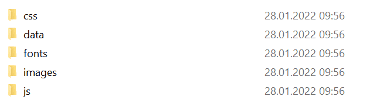
The ZIP-file has to contain this structure:
Filenames | Common directory structure |
Payment Page template XSL-Template: MerchantID_PaymentPage.xsl XML-Textdatei: MerchantID_PaymentPage.xml XSL-Template mit Freitext: MerchantID_MyPurpose_PaymentPage.xsl XML-Template mit Freitext: MerchantID_MyPurpose_PaymentPage.xml | Each ZIP file has to use this directory structure:
Additionally a directory "data" can be used, e.g. to store translations. Top level:
Sub directory:
|
Credit Card template (PaySSL) XSL-Template: MerchantID_PaySSL.xsl XML-Textdatei: MerchantID_PaySSL.xml XSL-Template mit Freitext: MerchantID_MyPurpose_PaySSL.xsl XML-Template mit Freitext: MerchantID_MyPurpose_PaySSL.xml | |
Direct Debit template (PaySDD) XSL-Template: MerchantID_PaySDD.xsl XML-Textdatei: MerchantID_PaySDD.xml XSL-Template mit Freitext: MerchantID_MyPurpose_PaySDD.xsl XML-Template mit Freitext: MerchantID_MyPurpose_PaySDD.xml |

Template Security – allowed links and tokens
For security reasons links are only allowed to specific websites (e.g. to refer to terms and conditions, imprint, ...):
computop.com
visa.com
mastercard.com
and these CData tokens are not allowed within XML, XSL:
@
<&
data:
document.write
xmlhttprequest
window.open
Usage of TemplateManager
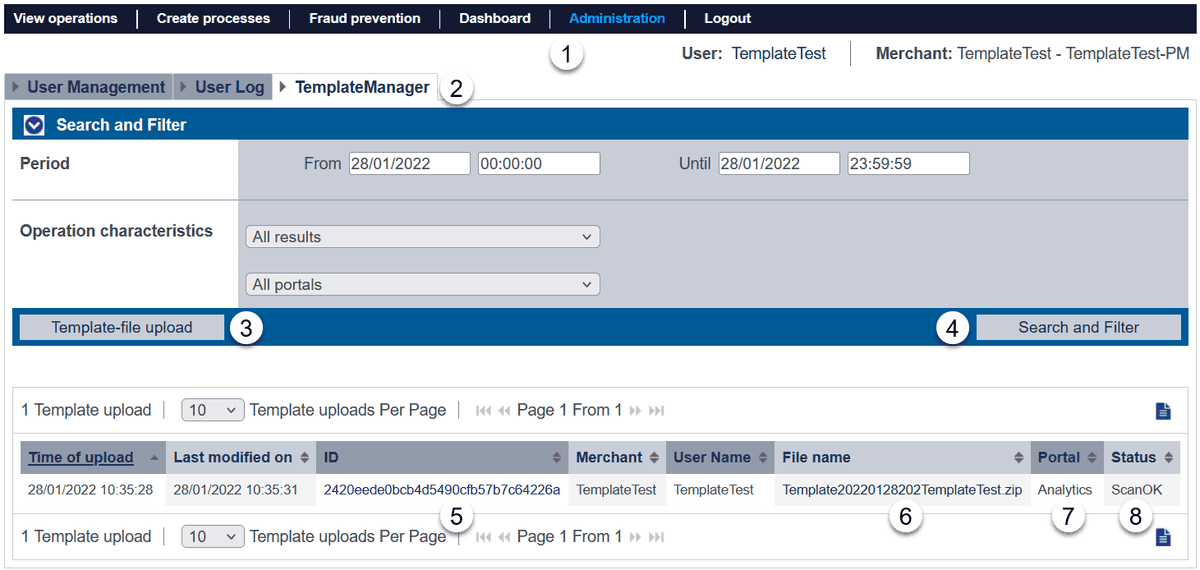
The template manager form looks like this:
Accessing TemplateManager
Select "Administration" (1) and "TemplateManager" (2) to see the TemplateManager form.
Your MerchantId and user needs specific permission.
Uploading new template
To upload a new template file pls. select "Template-file upload" (3).
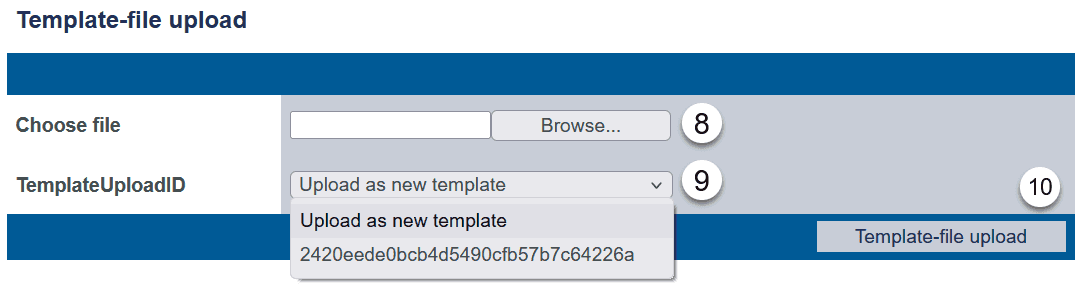
Please select the desired template file (8) and select either the TemplateId you would like to override or add a new template (9). Finally confirm upload (10).
The template is uploaded and upload is confirmed with:

The template is immediately scanned and displayed in the list of uploaded templates after pressing button "Search and Filter".
If scanning process detected an error you will see a message like this:

Further error messages can be found here: TemplateManager error messages
Appendix
Template Manager error messages
Classification | Scanning message | Cause | Advise |
General | CONNECTION_ERROR |
|
|
FirstChecks | FIRSTCHECKS_FILEEXTENSION_NOT_ALLOWED |
|
|
FIRSTCHECKS_FILESIZE_TO_BIG |
|
| |
FIRSTCHECKS_FILENAME_TO_SHORT |
|
| |
FIRSTCHECKS_VALUE_TEMPLATE_MISSING_IN_FILENAME |
| ||
FIRSTCHECKS_VALUE_DATE_NOT_CORRECT_IN_FILENAME |
| ||
FIRSTCHECKS_VALUE_COUNTER_NOT_CORRECT_IN_FILENAME |
| ||
FIRSTCHECKS_VALUE_MID_NOT_CORRECT_IN_FILENAME |
| ||
FIRSTCHECKS_IMAGES_FOLDER_MISSING |
|
| |
FIRSTCHECKS_FILE_STRUCTURE_NOT_CORRECT |
|
| |
Scan | SCAN_DATA_FIELD_MISSING |
|
|
SCAN_BASE_URLS_NOT_ALLOWED |
|
| |
SCAN_SRC_NOT_ALLOWED |
|
| |
SCAN_HREF_NOT_ALLOWED |
| ||
SCAN_SCRIPT_SOURCE_NOT_ALLOWED |
|
| |
SCAN_SUSPICIOUS_TOKENS_IN_XSL_FILE_FOUND |
|
| |
SCAN_SUSPICIOUS_TOKENS_IN_XML_FILE_FOUND |
|
| |
SCAN_XML_FILE_INVALID |
|
| |
SCAN_XSL_FILE_INVALID |
| ||
SCAN_TRANSFORMATION_FAILED |
| ||
Distribute | DISTRIBUTE_TEMPLATE_UPLOAD_FAILED |
|
|