Opening
Recommended browsers
We recommend using the latest version of either Mozilla Firefox and Google Chrome as a browser for Computop Analytics.
Use the browser to open https://paygate.computop.de/analytics/.
→ The Opening and logging in to the application page appears, which is used to log in to the application.
Computop will provide you with the access data (merchant, user name, password).
Logging in
If you have forgotten your password, or your password has been disabled
You can reset a user’s password yourself if user administration (optional) has been activated.
If user administration (optional) has been activated, then a user with administrator rights can reset another user’s password.
If you have forgotten your password, or your password has been disabled, you will need to contact Computop Helpdesk. If user administration (optional) has not been activated, you will need to contact Computop Sales.
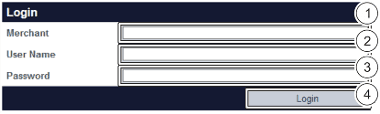
"Merchant" input field
"User name" input field
"Password" input field
"Login" button
"Password reset" link
“Merchant” input field
If several merchants have been saved to the application for your company, then each merchant will receive an ID of their own. The merchant ID must be entered in the "Merchant" input field along with the "User name" and the "Password". When using a different merchant ID to log in, the "User name" and "Password" remain the same.
Enter the access data.
Click on the "Login" button.
→ The application opens.
Logging in for the first time
The password must be changed after logging in for the first time for security reasons.
Changing the password after logging in for the first time
Current password and new password input fields
"Confirm" button
Rules when choosing a password
For a new password to be valid, it must meet the following criteria:
12 to 20 characters long
At least one digit, one special character, and one uppercase letter
Different to the last four passwords
Enter the current password and the new password.
Click on the "Confirm" button.
→ If the password is valid, the message "Password successfully changed" will appear in green. If the password is invalid, a message showing the reason why will appear in red.
Password reset
In case you forgot your password you can click on the links "Forgot your password?".
By doing so a new form will be shown:
Enter your MerchantId and Username

Here you will have to enter your MerchantId and your Username - both are mandatory.
Email has been sent
If your combination of MerchantId and Username have been found an email will receive an email for confirmation:
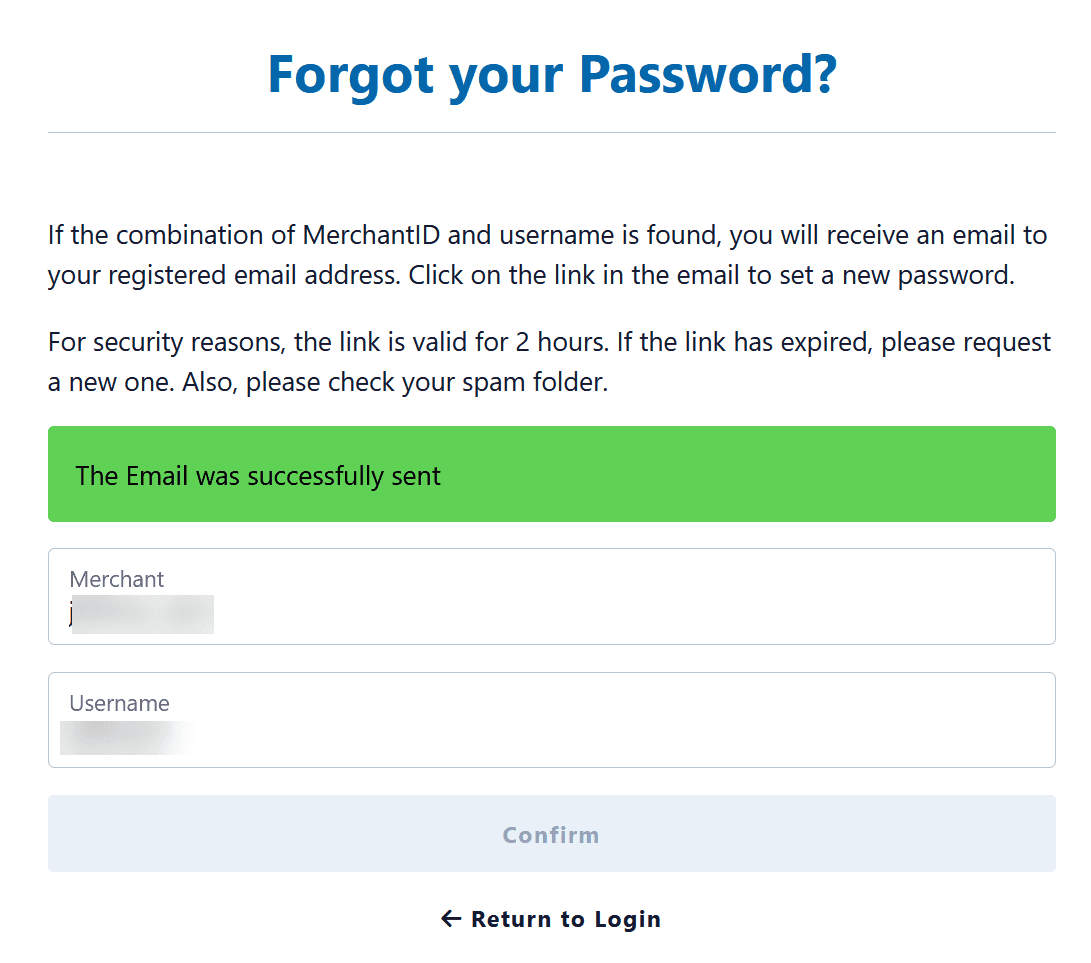
Email with link to reset password

Set new password
After clicking on the link to "reset password" a new form will be displayed
Please enter the new password twice - to ensure you have no typo in any password.
Then click on "Save" and your new password is active.
You may now use this new password to login into Computop Analytics.