Selecting merchants
Information about the user who is logged in and about the merchant selected can be viewed below the main menu.
Several merchants may be allocated to one user.

User who is logged in
Drop-down "Merchant" menu
Proceed as follows to select a merchant:
Click the arrow on the drop-down "Merchant" menu.
→ The drop-down menu opens.
Selecting all merchants
If you select "All merchants" in the drop-down "Merchant" menu, you can search for payment transactions for all merchants which have been created.
- Select merchants from the drop-down "Merchant" menu.
→ The drop-down menu closes and the merchant which was selected appears at the top of the drop-down menu.
Opening merchant and user data

User who is logged in
Proceed as follows to open the merchant and user data:
Click on the user.
→ The merchant and user data open.

Changing merchant and user data
Access data
Your access data can only be changed by Computop Helpdesk for security reasons.
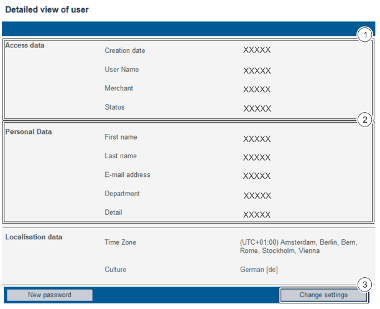
Access data
Personal data
"Change settings" button
Proceed as follows to change the merchant and user data:
Open the merchant and user data, see Opening merchant and user data.
Click the "Change settings" button.
→ The input fields appear.
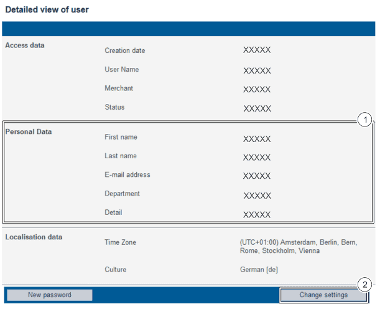
Personal data
"Change settings" button
Change data in the area "Personal Data".
Click the "Change settings" button.
→ The input fields close, and the changes are saved.